Technician App UI
Previous: Tenant App UI
Next: Features
This page documents technician-side screens for queue management, job execution, reporting, messaging, and profile availability.
1) Core technician flows
Use these screens to validate primary execution behavior:
- Review active and pending assignments.
- Progress jobs through technician lifecycle actions.
- Confirm completion/reporting and profile updates.
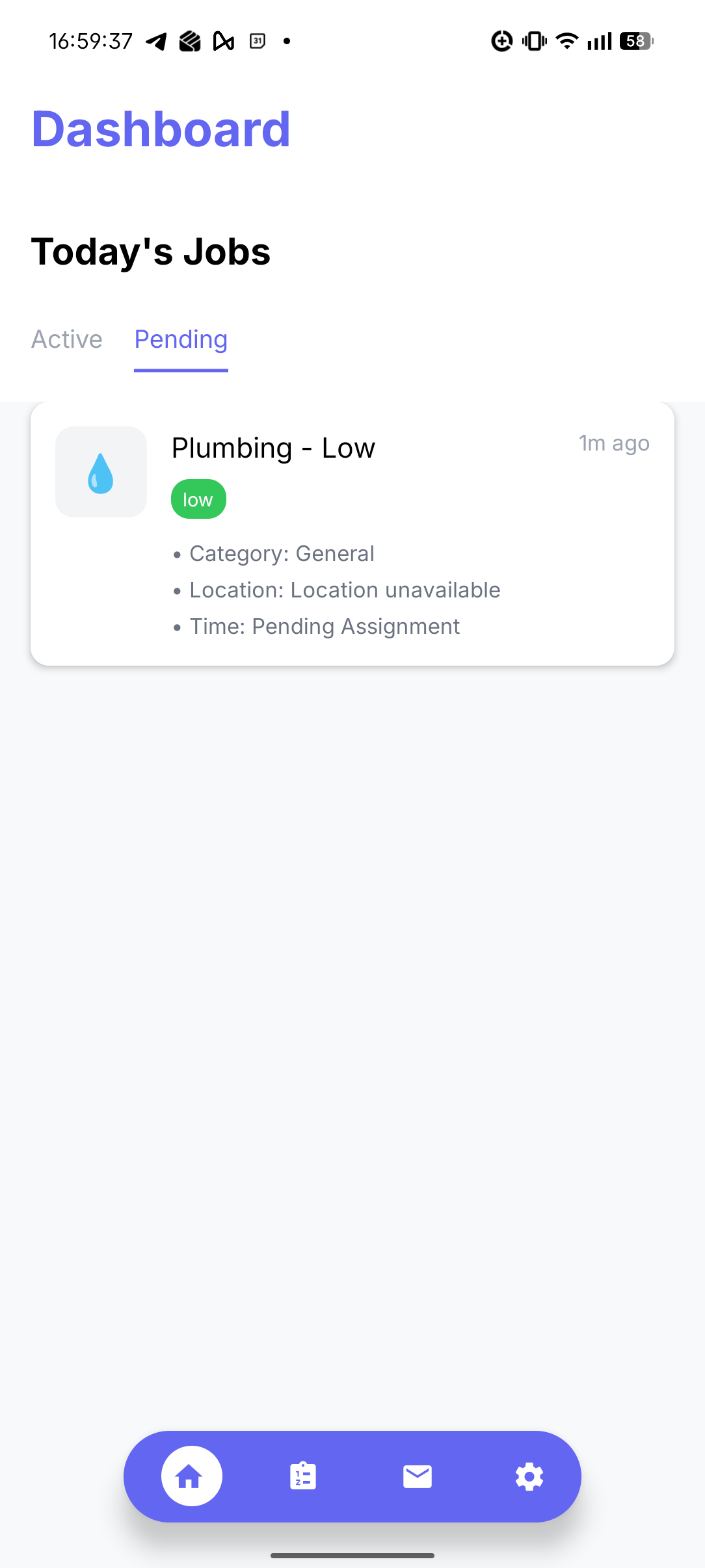 Caption: Home dashboard with active/pending filter and job cards.
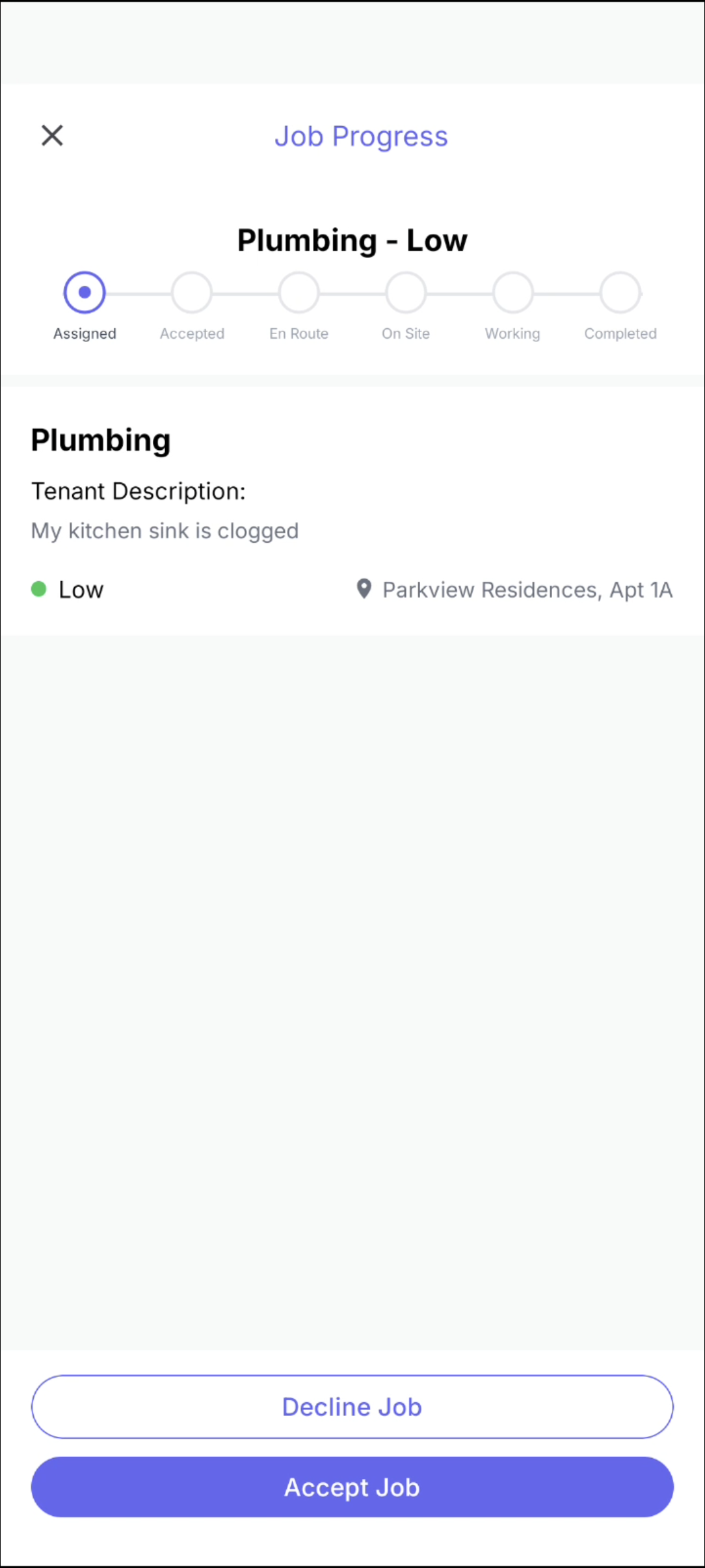
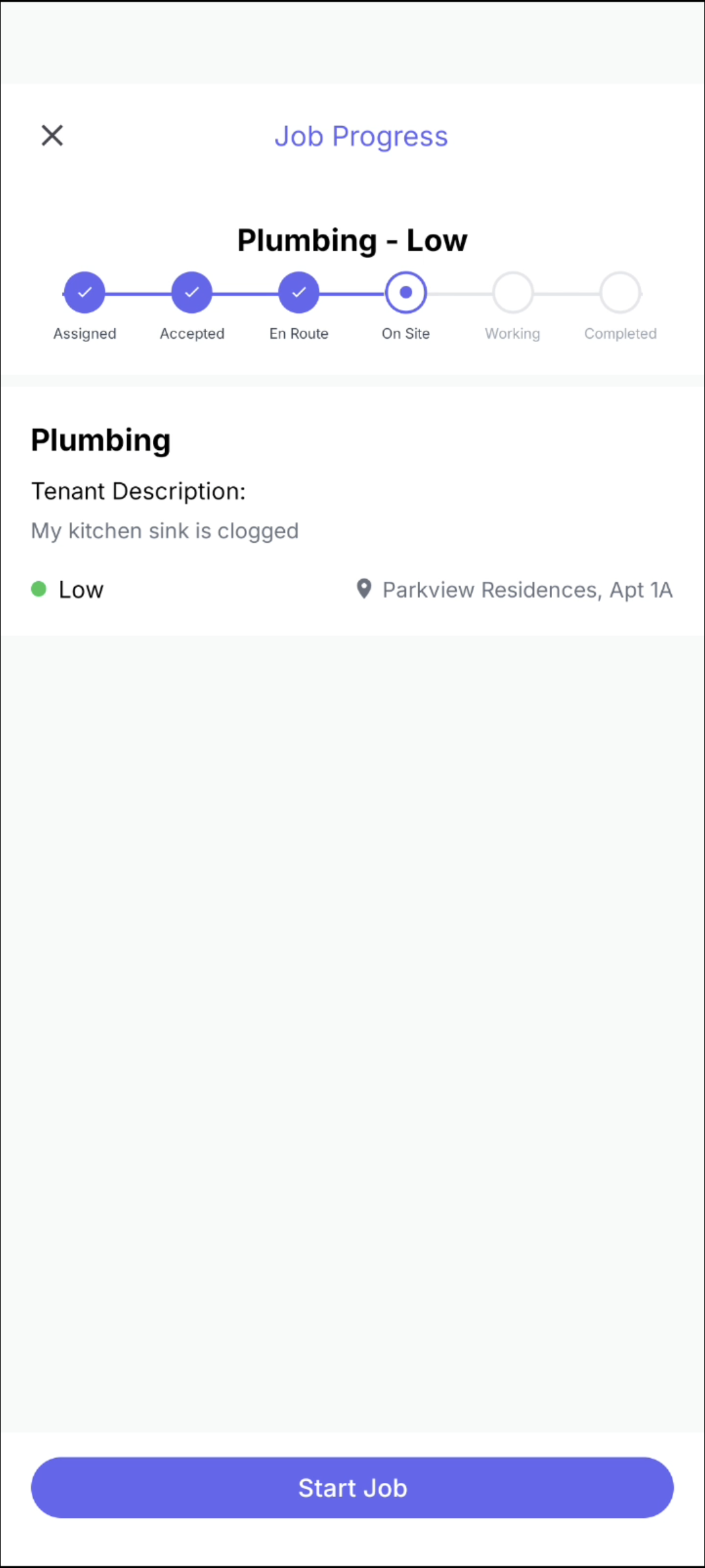
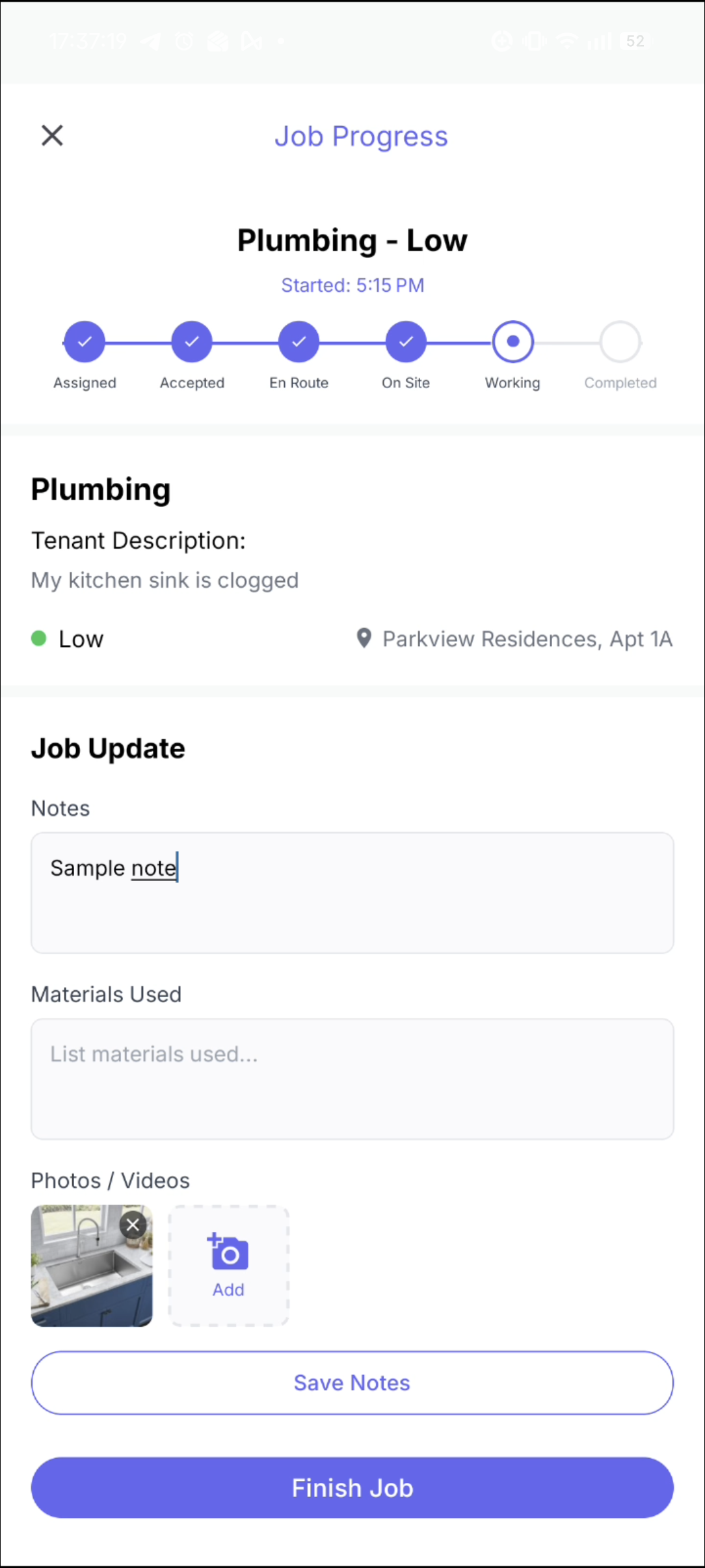 Caption: Job workflow with status progression, notes/materials entry, media upload, and completion actions.
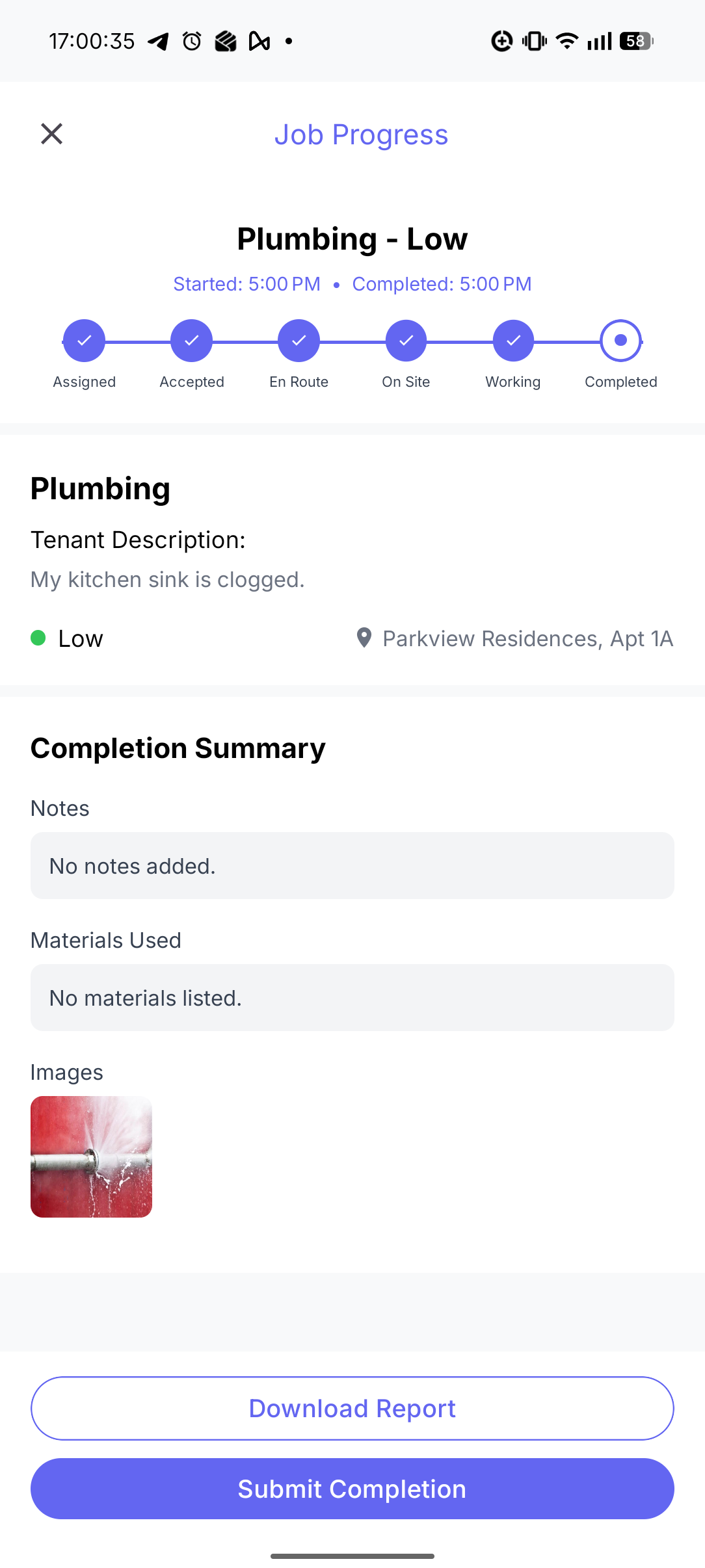
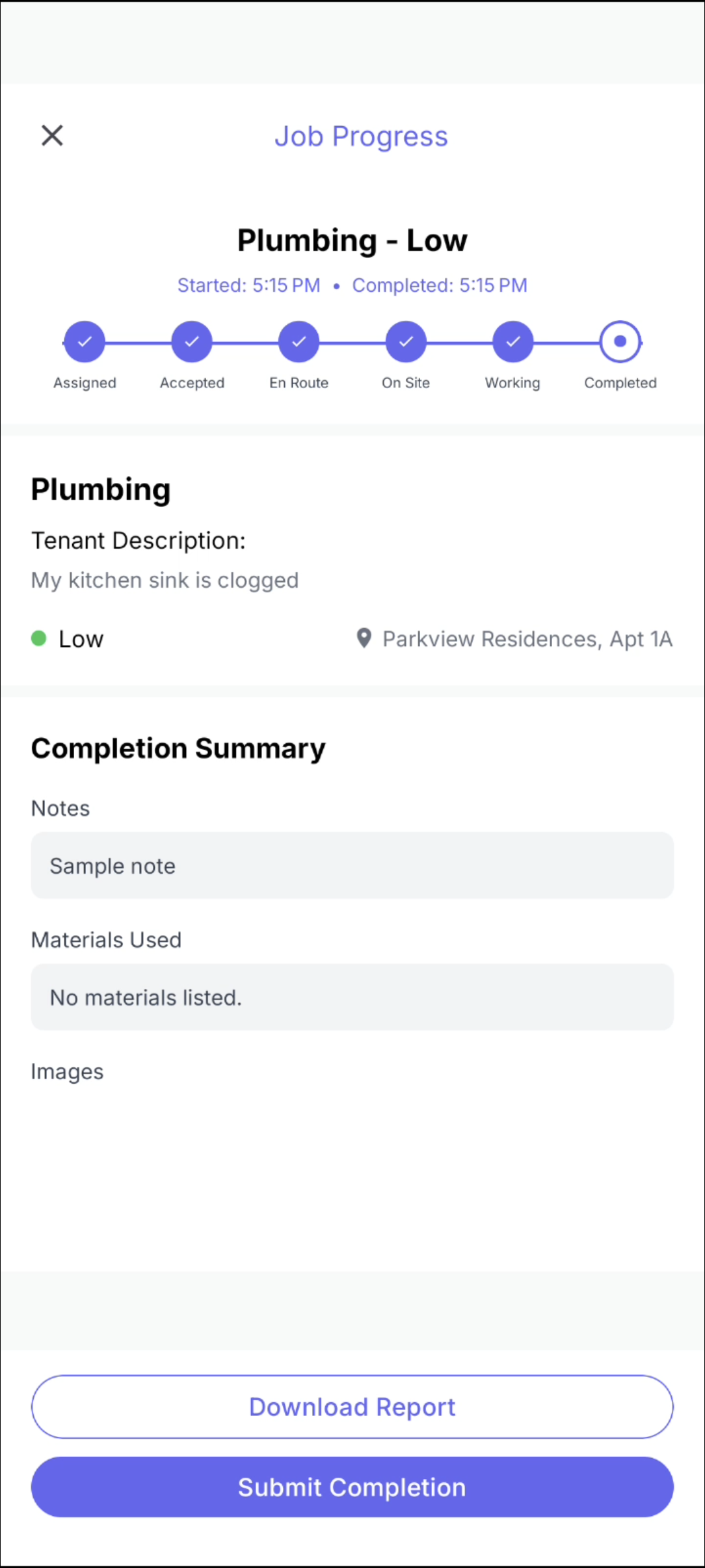 Caption: Completed job view with completion summary and report submission/download actions.
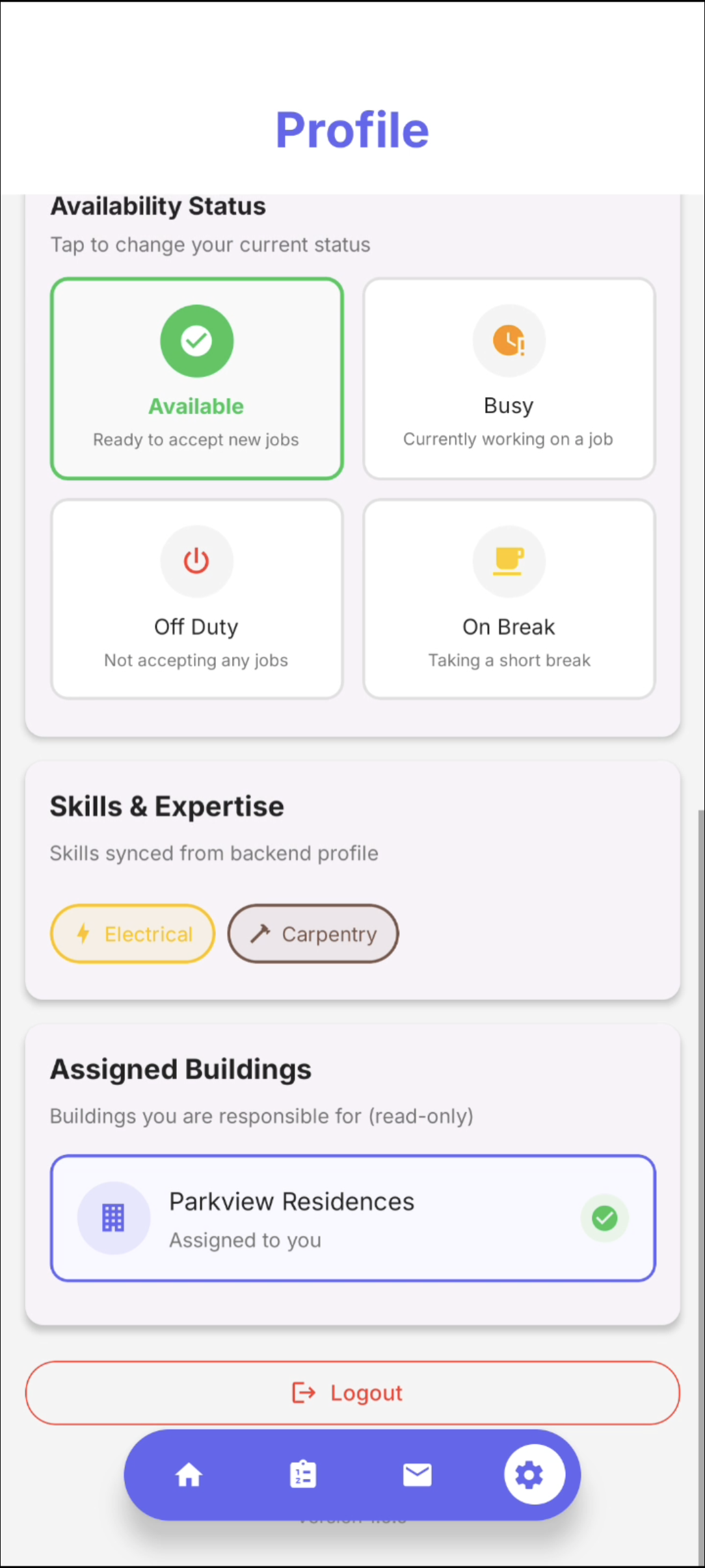 Caption: Availability states, backend-synced skills display, and assigned buildings.
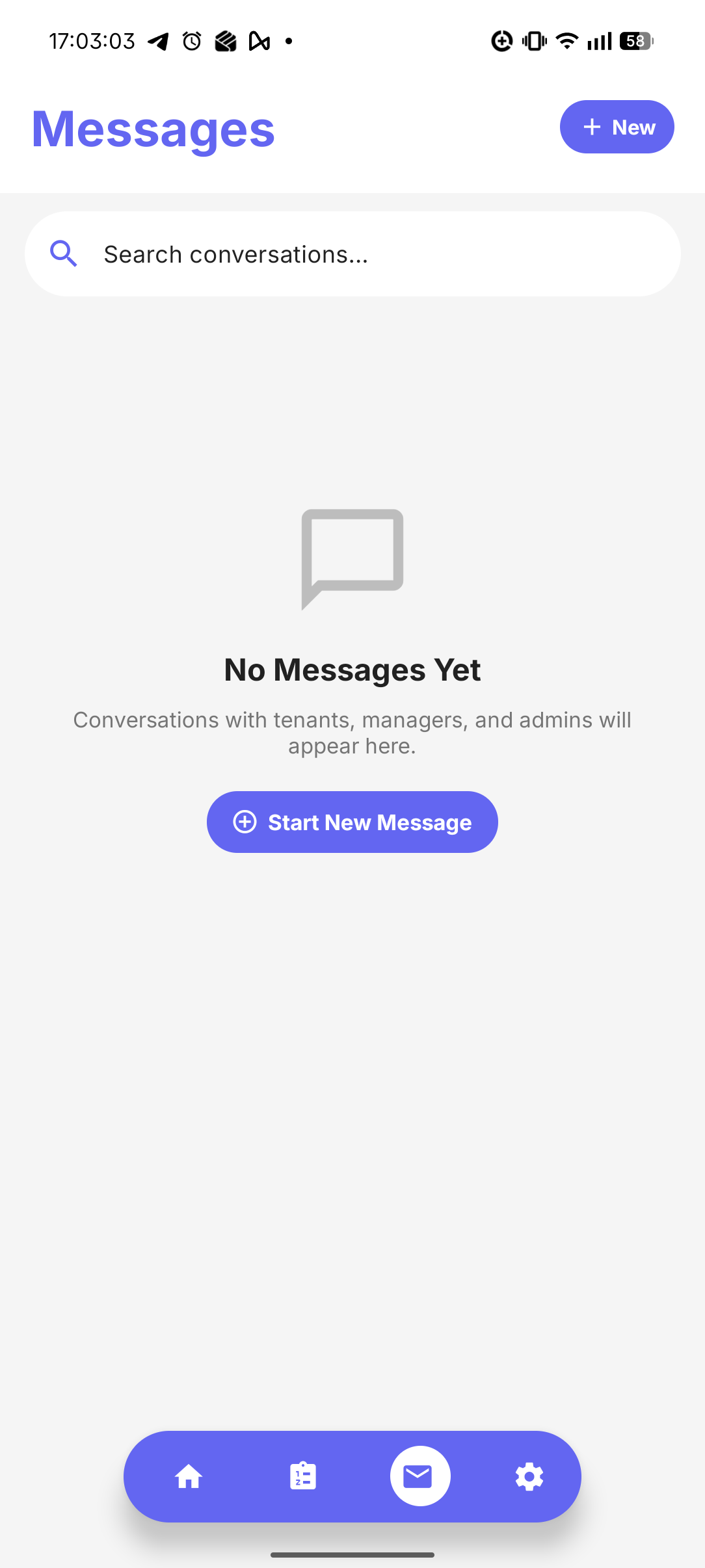 Caption: Conversation list and message entry point.
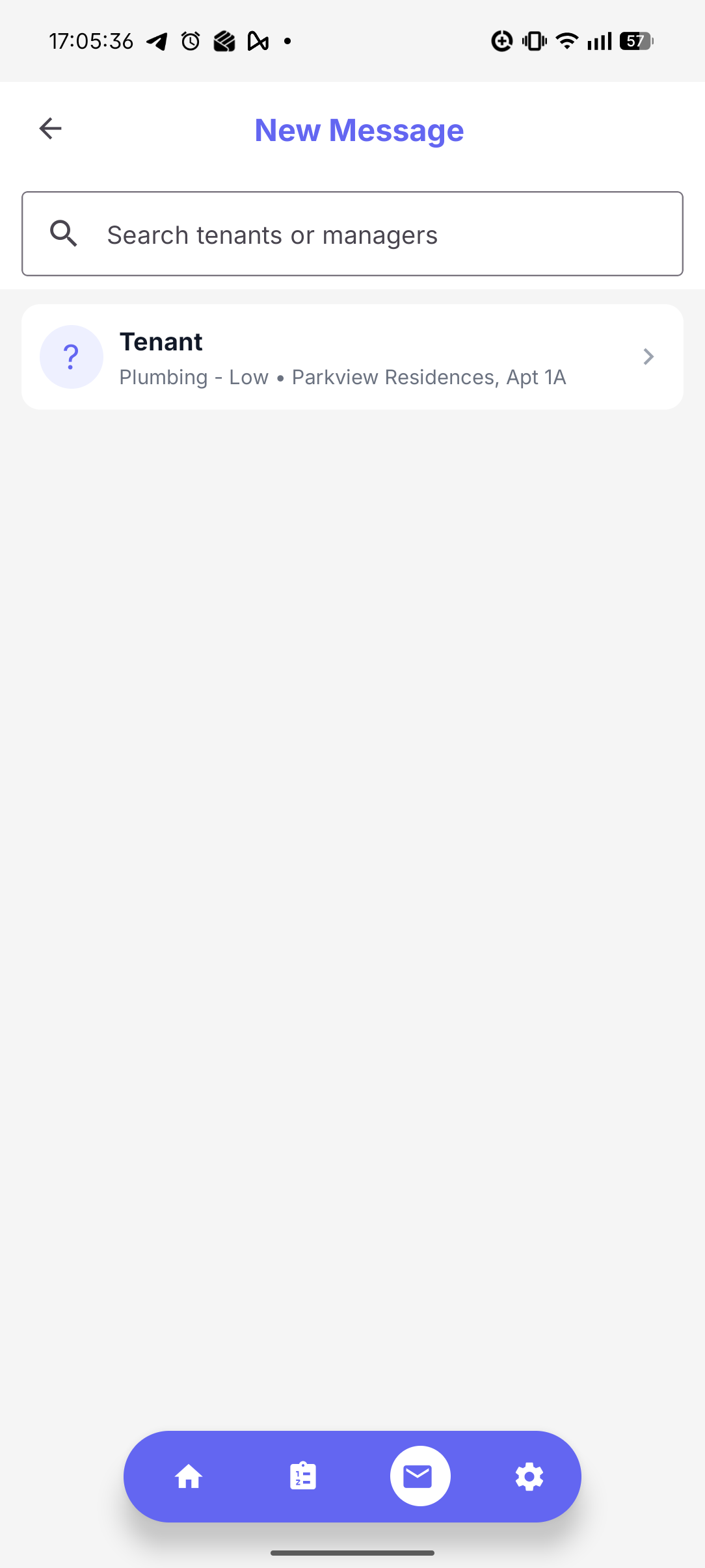 Caption: Recipient search and compose-start workflow.
2) Technician execution reference set
These screenshots provide additional queue and completion checkpoints for walkthroughs.
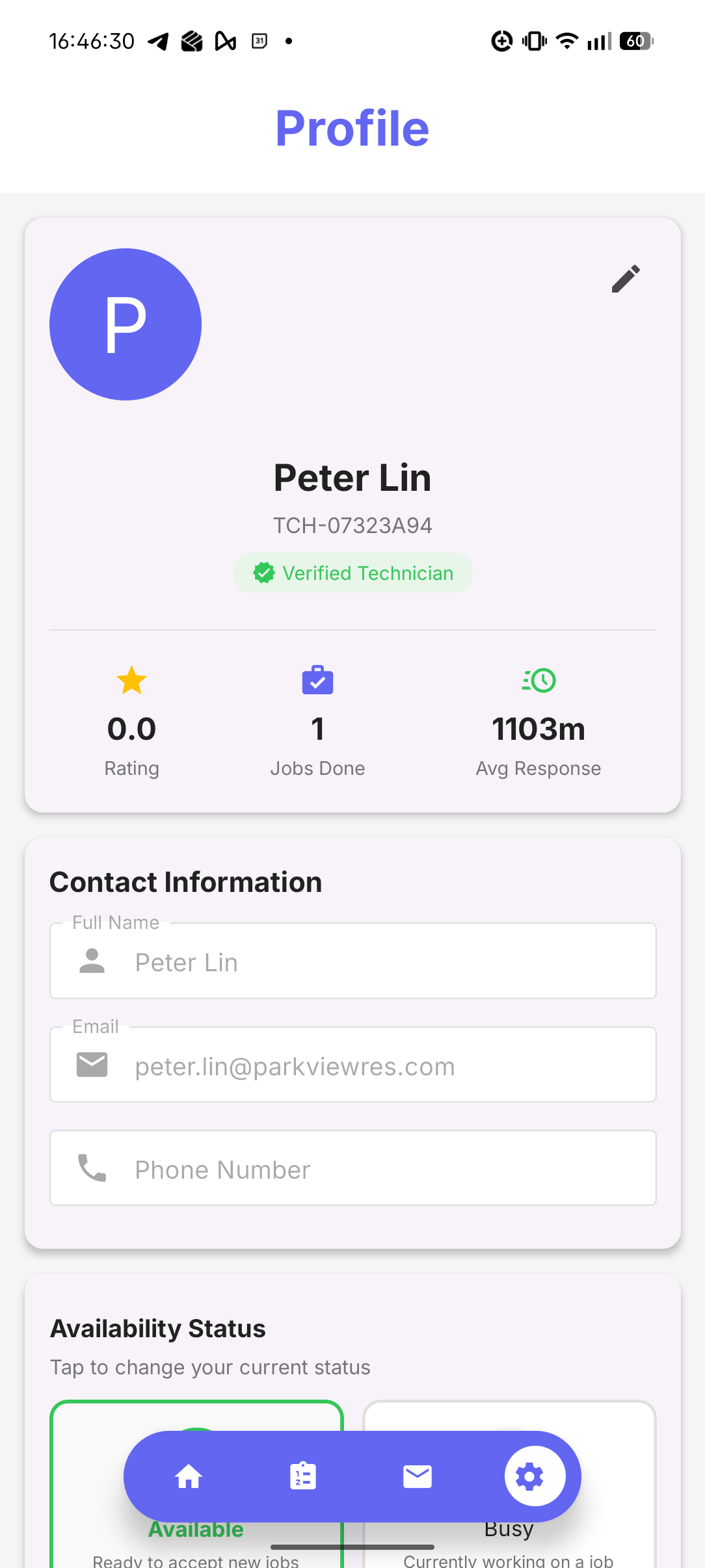 Caption: Queue view for active and pending assignment visibility.
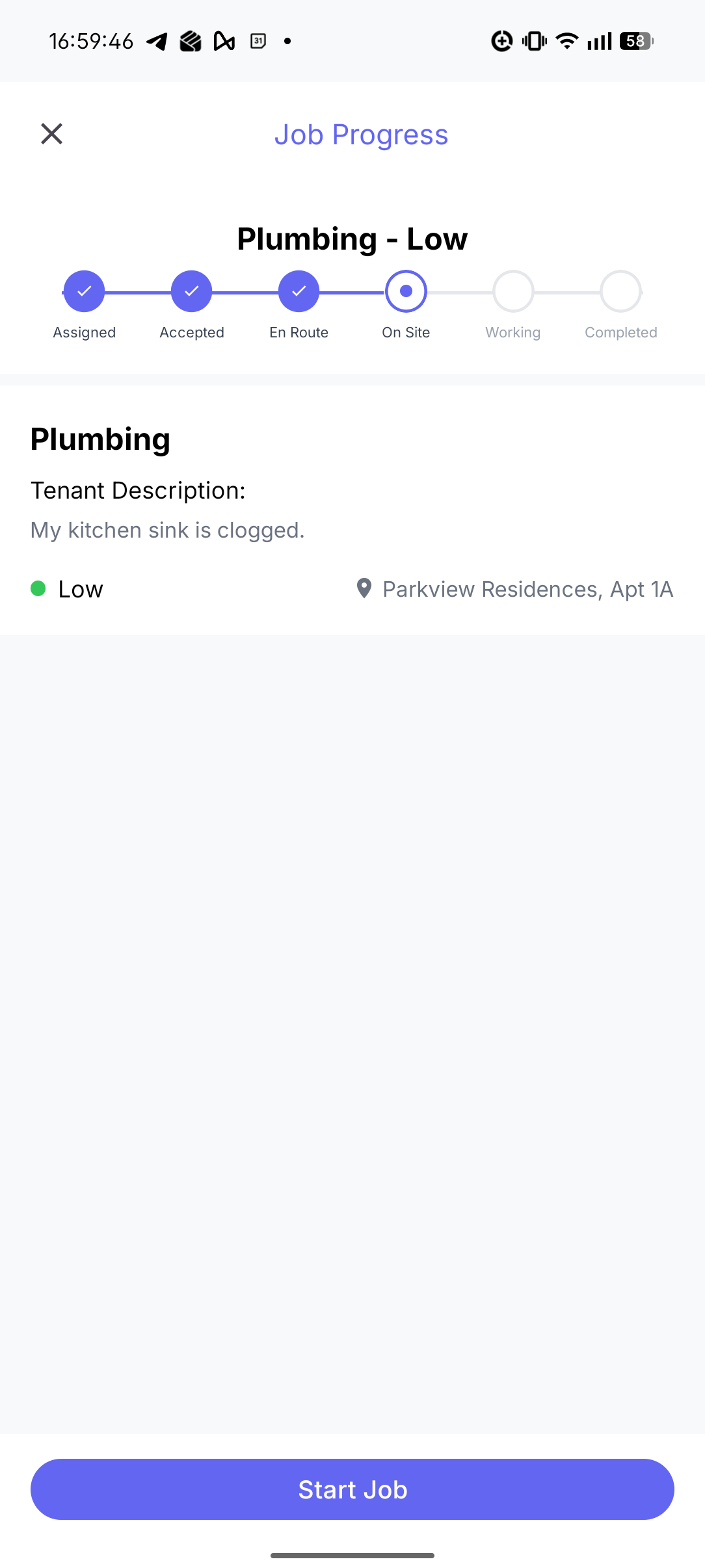 Caption: Assignment list context for prioritization and selection checks.
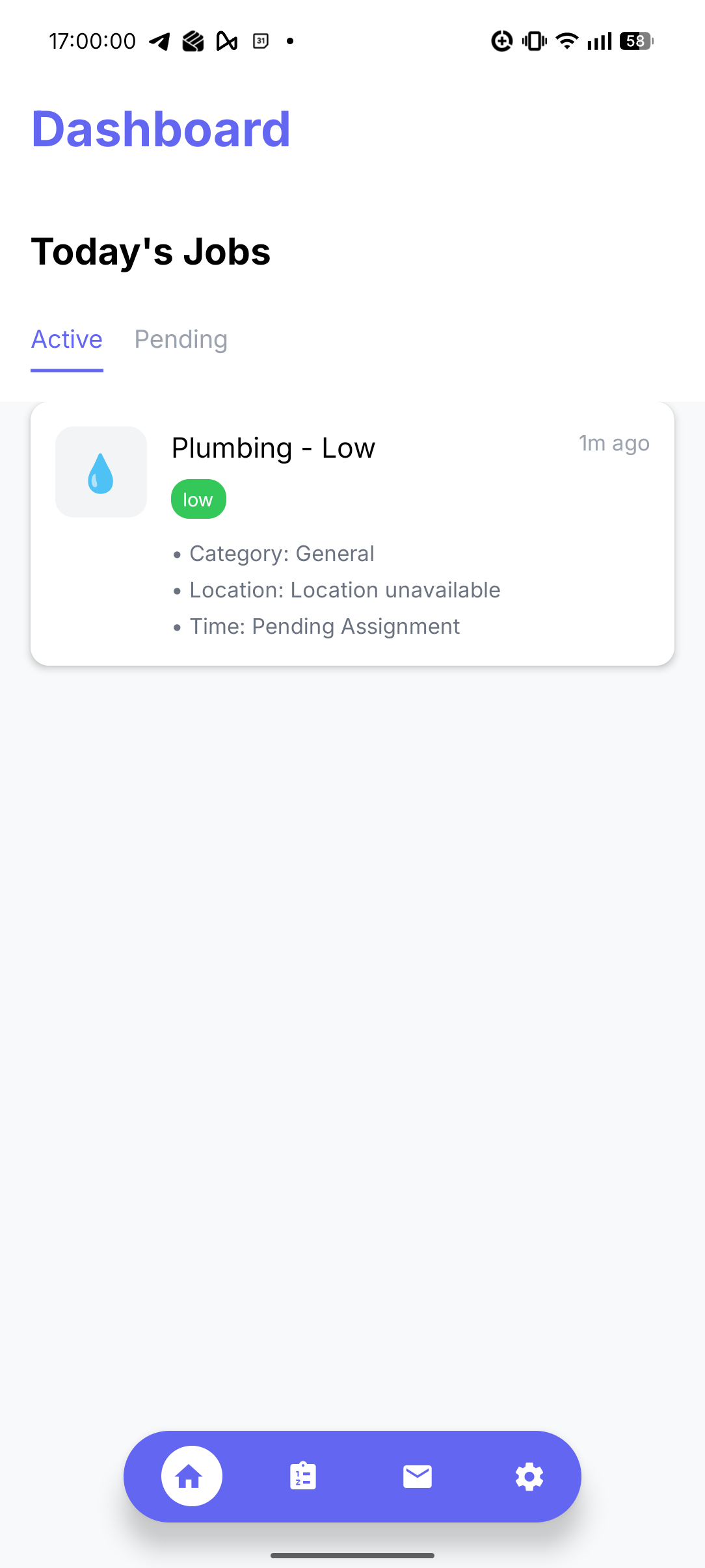 Caption: In-progress detail view with operational actions and ticket context.
 Caption: Follow-on workflow state for task progression validation.
 Caption: Completion-preparation view for notes, materials, and media readiness.
 Caption: Completion confirmation context for final action checks.
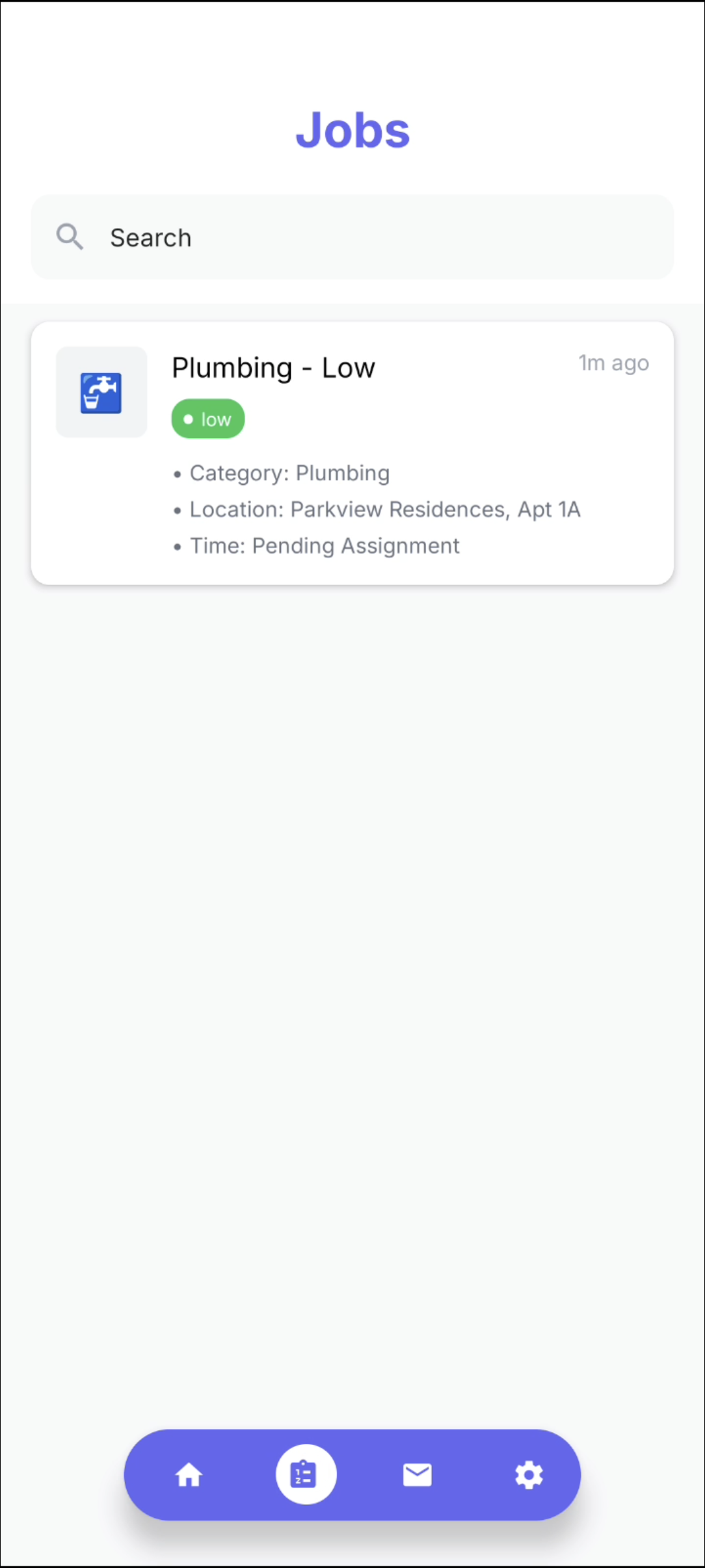 Caption: Post-completion summary used for report and closure verification.
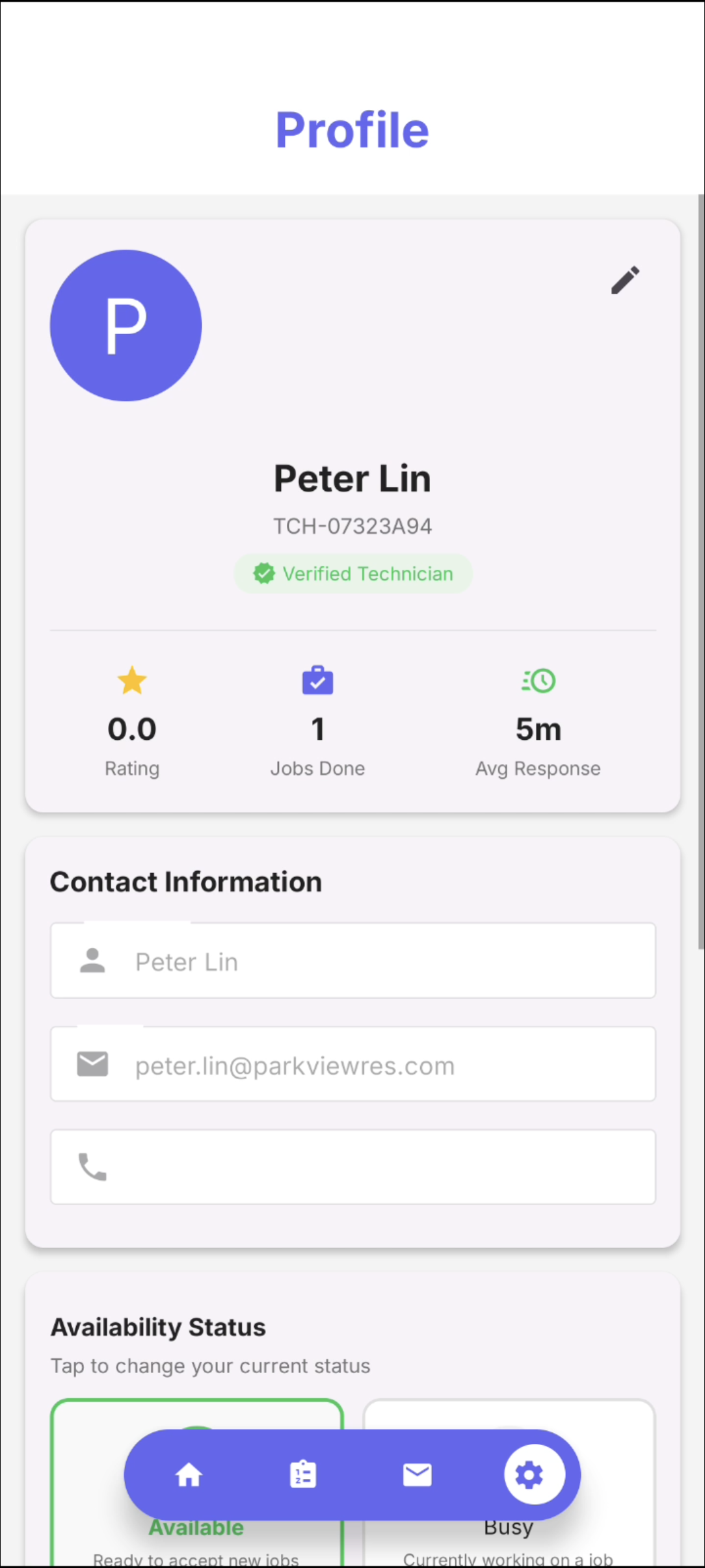 Caption: Profile and availability management details for operational readiness checks.
Implemented technician app areas:
- Job lifecycle actions (
technician_confirm,technician_decline,start_job, worklog updates, and completion). - Materials/media updates and completion-summary handling.
- Chat conversation and direct-message flows.
- Profile and availability management.
Previous: Tenant App UI
Next: Features